Fix the wrong keyboard layout — in English, Russian & Ukrainian
Typed a whole sentence and realized the layout was wrong —
руддщ instead of hello, or Ghbdsn
instead of Привіт? TypeSwitcher converts the
selected text back with one shortcut — in English, Russian and
Ukrainian, in any direction. Free, private and native, on Mac and Windows.
2,775 downloads
Private by design — everything stays on your Mac. Privacy Policy · Terms of Service
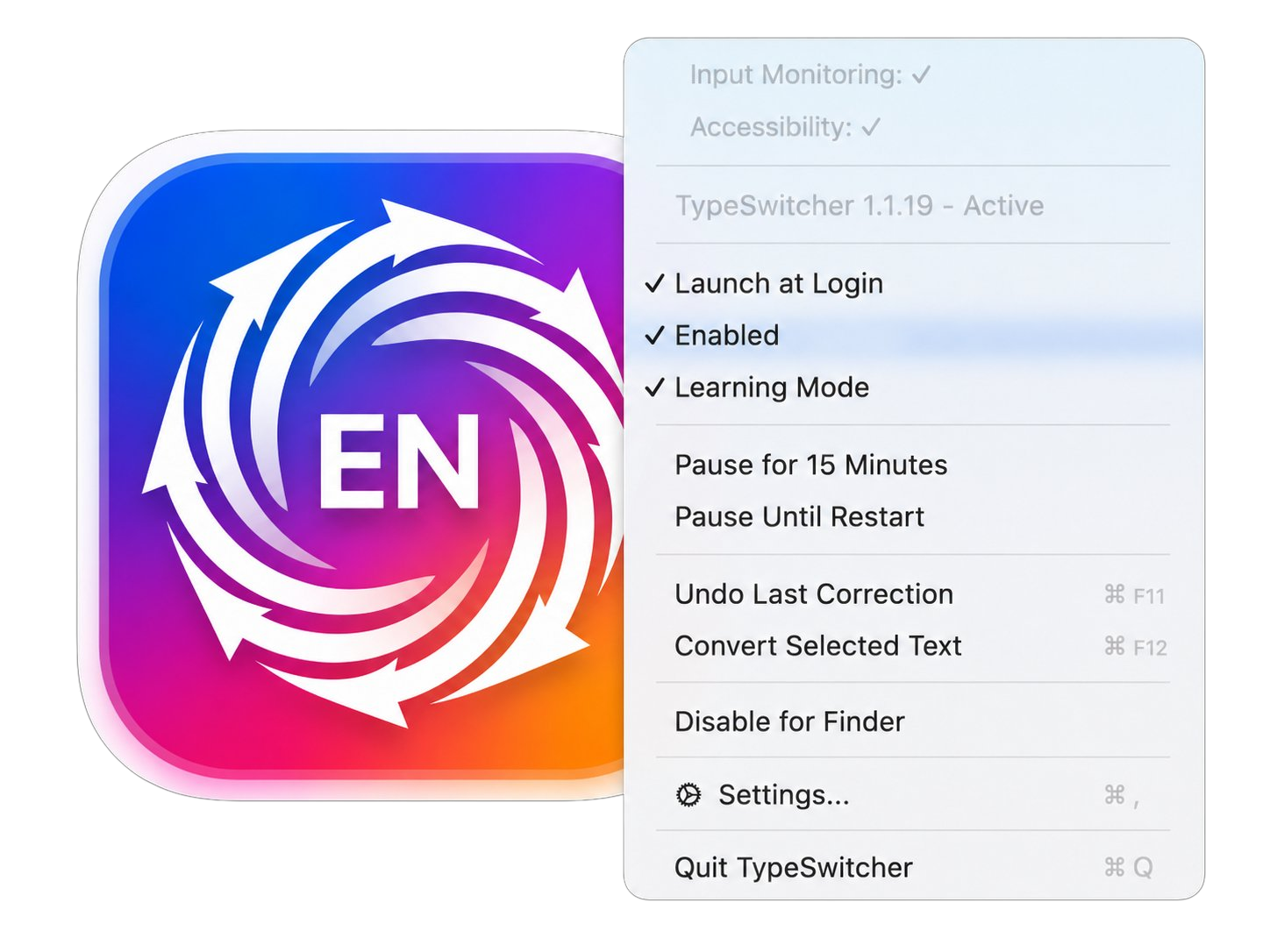
Built for English, Russian & Ukrainian
If you switch between Latin and Cyrillic keyboards every day, you know the pain. TypeSwitcher fixes text typed in the wrong layout across all three languages — in any direction — without retyping a single word.
English
руддщ → hello. Recover Latin text typed while a
Cyrillic layout was active.
Russian
ghbdtn → привет. Convert Russian text back when the
English layout was on.
Ukrainian
Ghbdsn → Привіт. First-class Ukrainian support,
including the unique і, ї, є and ґ.
Conversion works in both directions between every supported layout.
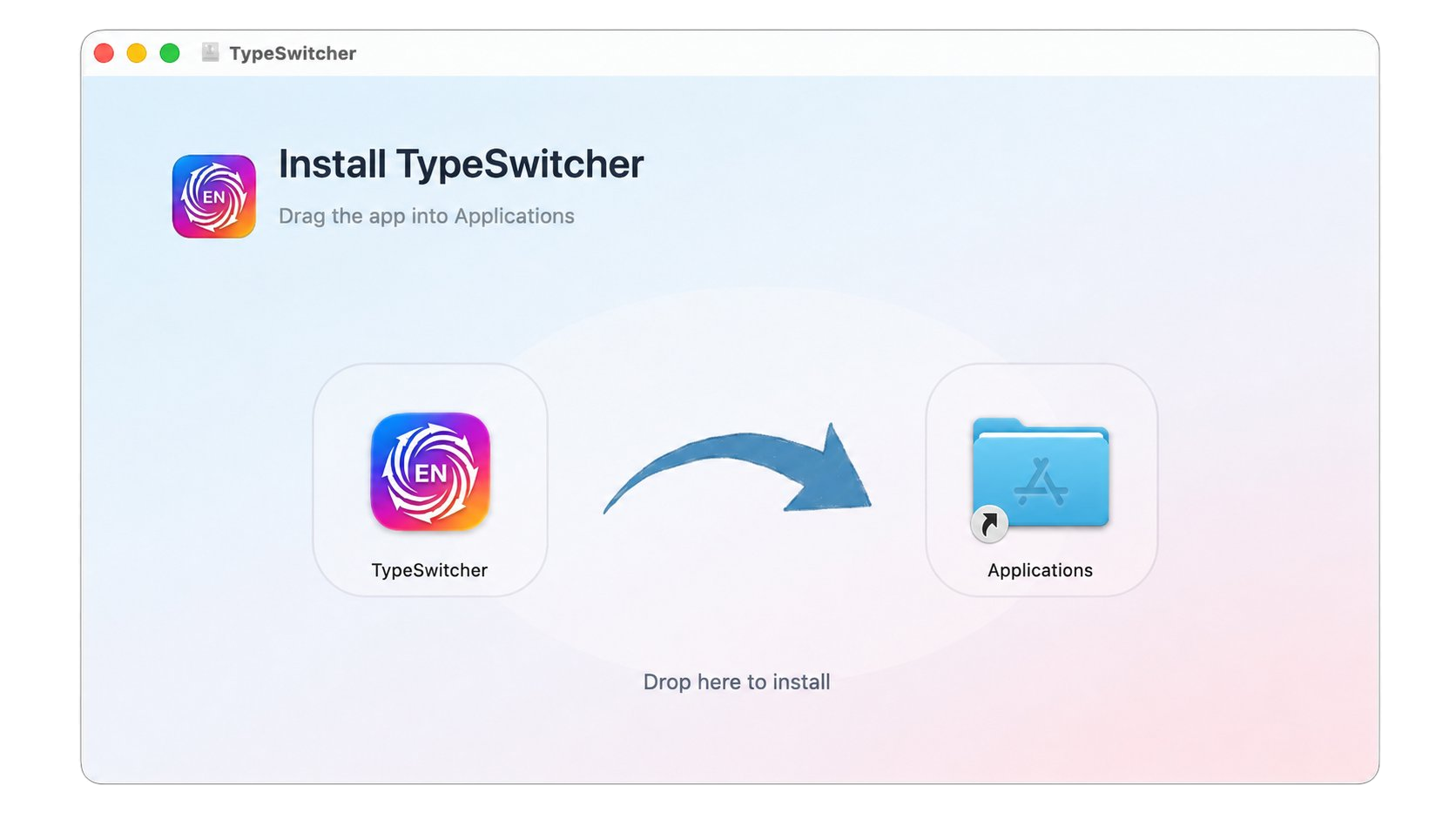
Install TypeSwitcher in Applications
After the download finishes, open the .dmg file and drag the
TypeSwitcher icon into Applications.
Then launch TypeSwitcher from Applications.
-
Open the installer
Double-click the downloaded
.dmgfile. -
Move the app
Drag the TypeSwitcher icon to the Applications folder.
-
Start TypeSwitcher
Open it from Applications. TypeSwitcher will ask for the permissions it needs.
Allow TypeSwitcher in Privacy & Security
TypeSwitcher works locally on your Mac, but macOS requires explicit permission before an app can read typed text and replace selected text. Open System Settings and enable both permissions below.
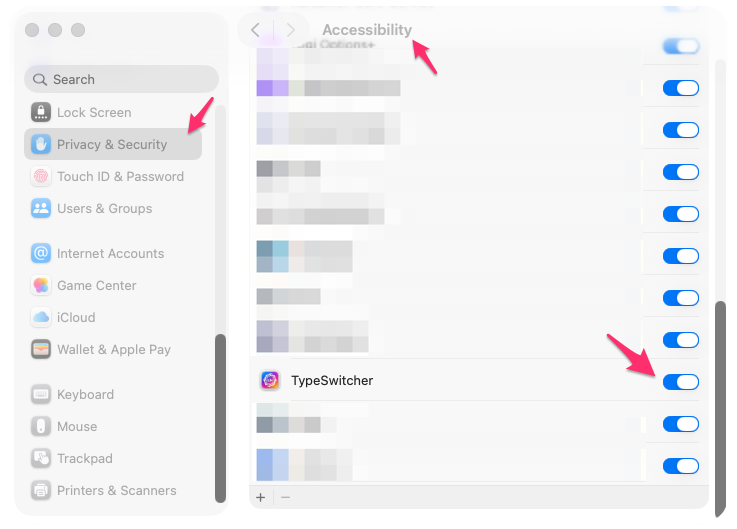
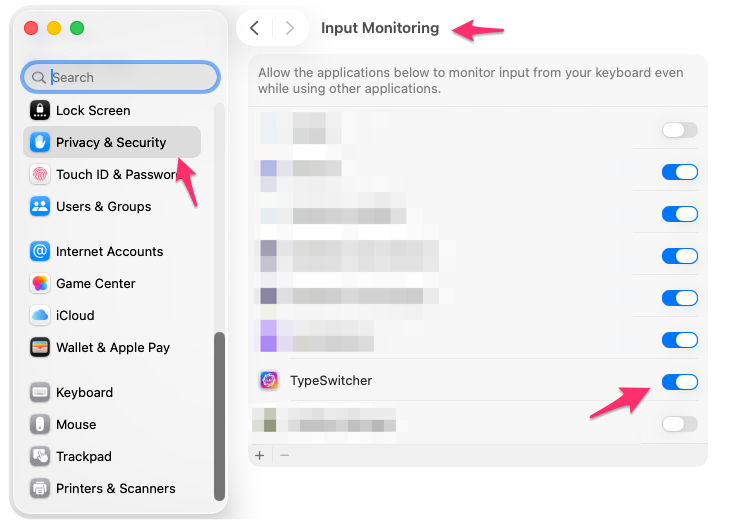
After both permissions are enabled, the TypeSwitcher icon appears in the macOS menu bar system tray area. Open it from there to enable the app, pause it, or change settings.
Check that conversion works
-
Open a text editor
Use TextEdit, Notes, or any app where you can type and select text.
-
Type English text on another layout
Switch to another keyboard layout and type
hello. On a Russian layout this usually appears asруддщ. For Ukrainian, tryПривітwhile the English layout is active; it usually appears asGhbdsn. -
Convert it back to English
Select the mistyped text and choose Convert Selected Text from the TypeSwitcher menu. The result should be
hello.
If the text converts correctly, TypeSwitcher is installed and configured.
TypeSwitcher vs Caramba Switcher & Punto Switcher
A layout switcher can read everything you type — passwords, messages, card numbers. TypeSwitcher keeps all of it on your device, runs on Mac and Windows, and treats Ukrainian as a first-class language.
| Feature | TypeSwitcher | Caramba Switcher | Punto Switcher |
|---|---|---|---|
| Platform | macOS & Windows (native) | macOS & Windows | Windows only |
| Ukrainian support | First-class | Not supported | Not supported |
| Languages | English · Russian · Ukrainian | English · Russian only | English · Russian only |
| Privacy | 100% local · no telemetry, no account | Runs locally | Proprietary · owned by Yandex |
| Price | Free | Free | Free |
| Automatic updates | Yes | Yes | Yes |
Comparison reflects each product's typical, advertised use. Caramba Switcher and Punto Switcher are products of their respective owners.
Frequently asked questions
Is TypeSwitcher free?
Which languages and layouts are supported?
Does TypeSwitcher work on both Mac and Windows?
Is TypeSwitcher an alternative to Caramba Switcher and Punto Switcher?
Does TypeSwitcher send my keystrokes anywhere?
Why does it need Accessibility and Input Monitoring permissions?
Need help with TypeSwitcher?
Found a bug, have a question or want to request a feature? Fill out the support form and we'll get back to you by email. Please describe what happened, your macOS or Windows version and the TypeSwitcher version, so we can help faster.
Open the support form